











This page helps Tanzanian players access an existing Soccabet account or create a new one. Use it to enter your registered details, recover a forgotten password, and manage access from a desktop or mobile device. After signing in, you can review your balance, check open bets and results, make deposits, and request withdrawals where available.
Keep your phone number and password private, especially when using a shared device or public Wi-Fi. The same account details can normally be used in a browser and in the app. The sections below explain each step and offer practical checks when access does not work as expected.
How to Log In to Soccabet
The login form is available at the top of this page. Enter the mobile number or username linked to your profile, then enter your password and select the sign-in button. Successful access opens your account dashboard, where you can view account activity and betting information.
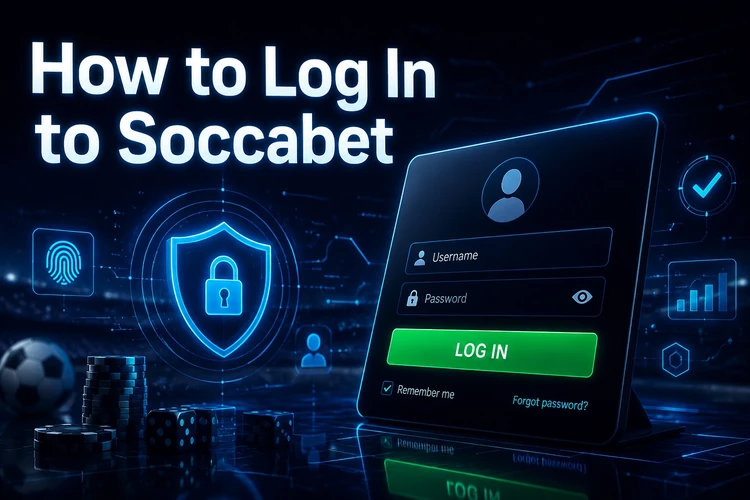
Use the exact number you registered with, including a country code if the form requests one. Passwords are case-sensitive, so check your keyboard language and Caps Lock before submitting the form. Saving credentials in a browser can be convenient, but only on a personal device protected by a screen lock.
If the form does not respond, refresh the page after checking your connection. Clearing outdated browser cache or trying another browser may also help. Avoid repeated guesses: several failed attempts can trigger a temporary security restriction.
How to Register a New Account
Create an account before attempting your first login. The registration form may request a Tanzanian mobile number, a password, and basic personal details. Provide accurate information that you can later confirm if account verification is required.
- Step 1: Open the registration form and enter your active mobile number.
- Step 2: Create a password that combines letters, numbers, and symbols where accepted.
- Step 3: Check your details carefully and confirm that you are 18+.
- Step 4: Submit the form and follow any verification instructions sent to your phone.
- Step 5: Return to the login form and enter your new credentials.
Do not register with somebody else’s number or details. A mismatch can delay verification or make password recovery difficult later. Store the password in a reputable password manager rather than in an unprotected note or message.
Using the Mobile Version
Soccabet can be opened in a current mobile browser such as Chrome, Safari, Firefox, or Samsung Internet. The mobile layout adapts to smaller screens, making the login fields, menus, and bet slip easier to use with touch controls. No download is needed to sign in through a browser.
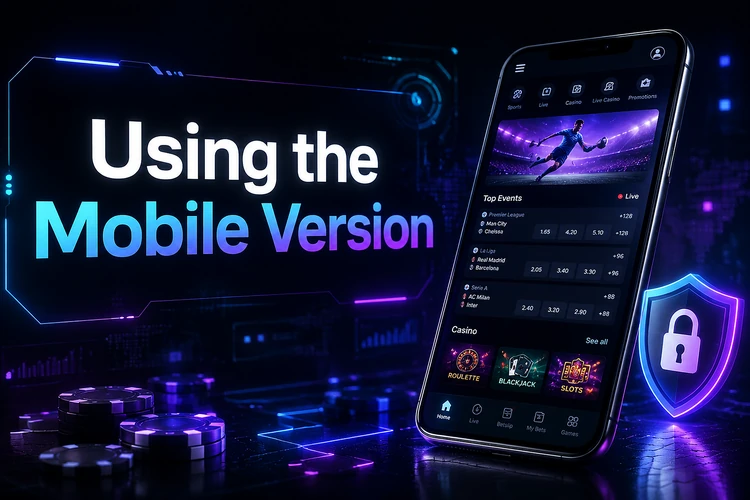
On a slower connection, close unused browser tabs and wait for the page to finish loading before entering your details. Adding the site to your phone’s home screen can provide quick access without relying on saved search results. Always verify that you are using the official site before signing in.
Logging In Through the App
If you use the Soccabet app, open it after installation and enter the same mobile number and password used in your browser. You do not need to create a second profile. The app can be useful for players who prefer a dedicated interface and account notifications on their phone.
Check for available updates if the app rejects valid details or behaves unexpectedly. Updating, restarting the device, and confirming a stable connection can resolve many routine issues. Information about installation and supported devices is available on the app page.
What to Do When You Cannot Log In
If you have forgotten your password, use the recovery option on the login form and follow the instructions sent to your registered mobile number. Set a new password that is different from your previous one and do not reuse a password from email or social media accounts.
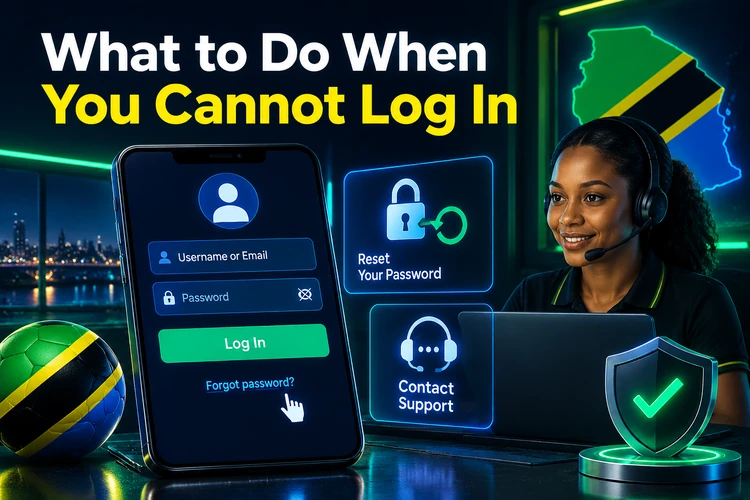
Before resetting anything, check for simple entry errors: an incorrect digit in your number, extra spaces, or the wrong keyboard setting. Disable a VPN or browser extension if it appears to interfere with the page, then try again after a short pause.
- Use only the password-recovery process provided on the login form.
- Wait before trying again if several unsuccessful attempts have been made.
- Do not send passwords, codes, or identity documents through social media messages.
For unresolved access or verification issues, use the contact page and provide the mobile number linked to your account. Support may request information needed to confirm that the profile belongs to you, but should not need your password.
Account Security Tips
A unique password is the first protection for your account. Use at least eight characters where possible, mixing upper- and lowercase letters, numbers, and symbols. Avoid names, dates of birth, and predictable number sequences.
Never share login details or one-time verification codes with another person. Be cautious of messages claiming to be from the platform and asking you to act urgently. Log out after using a shared phone or computer, and lock your own device when it is not in use.
Review your balance and betting history regularly. If you notice activity you do not recognize, change your password and contact support promptly. Keeping control of your account is also part of responsible gambling.
Logging in and registering are simple when your details are accurate and your device is secure. Use the official access page, protect your credentials, and use password recovery rather than repeated login attempts when you cannot remember your password.
FAQ
Enter the mobile number or username connected to your account and the password you created during registration.
Yes. Use the same registered credentials when accessing your account through a browser or the app.
Select the password-recovery option on the login form, enter your registered mobile number, and follow the instructions you receive.
Check the number format, password spelling, keyboard settings, and internet connection. If you have made several attempts, wait before trying again.
Only save credentials on a personal device protected by a screen lock. Do not save them on shared or public computers.